

June 5, 2026
Think about your work day. How much time do you spend reading, writing, or typing? A lot, most likely. Despite that, fonts are often overlooked. We rarely even think about it for more than a few minutes.
Yet, when we create PowerPoint presentations – or any other documents for sharing – font choice is a crucial factor impacting effectiveness and impactfulness. The way your text looks affects its readability and appeal as a whole. So it’s important to get it right!
Other factors should be considered too – for instance, font capabilities in PowerPoint or other programs, whether you should install fonts, and potential embedding of fonts.
We’ll tackle it all in this short guide.

Universal usability: PowerPoint fonts that work on PC and Mac
To start off simply, you have to ensure that the font you choose works on the operating system you will be using.
If different people are using the same deck on different operating systems – remember that some fonts may not be usable. In cases like this, the best font to use in PowerPoint is one that has cross-platform compatibility.
Here’s a comprehensive list of fonts that are commonly available on both PC (Windows) and Mac (macOS):
- Arial
- Arial Black
- Comic Sans MS
- Courier New
- Georgia
- Impact
- Lucida Console
- Lucida Sans Unicode
- Palatino Linotype / Book Antiqua
- Tahoma
- Times New Roman
- Trebuchet MS
- Verdana
These are the safest options when you’re working on a variety of operating systems because they come pre-installed on both Windows and macOS. This means that no matter what, you’ll have a consistent presentation (at least font-wise).
A presentation with inconsistent fonts – or worse, with text that won’t render – is both confusing and unprofessional, coming across as though effort was severely lacking at the time of creation.

Working online: Web-safe PowerPoint fonts
With PowerPoint alone (i.e. not including Keynote and Google Slides) you have a wide variety of font options at your disposal – more than 200, to be more accurate. However, if you’re planning to share a slide deck online for other people to download or use, you need to be careful.
Some fonts are safe to use on the web, while others are not.
As mentioned in the previous section, there is a group of fonts that come pre-installed with Windows and macOS. Those fonts are called system fonts. Web-safe fonts can be thought of as a subcategory of system fonts. So all web-safe fonts are system fonts, but not all system fonts are web-safe.
Unfortunately, this means that web-safe fonts are not as extensive in their variety. Nevertheless, there are some good options to choose from, including Ariel, Verdana, and Tahoma. In choosing a web-safe PowerPoint font you’ll be striking a fair balance between compatibility and visual appeal.
Adding fonts to PowerPoint
Should none of the standard fonts appeal to you, there is the option to download and install additional fonts. Both Google and Adobe have extensive libraries that you can dig into.
Google fonts
Google has a sizeable library of free fonts that you can download for PowerPoint. You can search the collection by filtering it to display your preference of category, language or other specifications – so you can find exactly what you’re looking for!
You may wonder whether the font you choose will work. In short – it will! Google Fonts allows you to embed the font into your presentation. We’ll get back to embedding in the next section – but essentially, it allows you to turn your chosen font into a PowerPoint Font.
Here’s what you need to do:
- Go to the Google Fonts site, search the library, and choose which ones you’d like to use.
- Click the download icon. Your fonts will be in a ZIP file.
- Extract the ZIP file and install the fonts!
Adobe fonts
This is a subscription-based service, which means that unfortunately, the fonts will not be free. If you don’t mind that, you can get access to premium fonts created by well-known designers. These fonts can also be embedded in PowerPoint.
Adding Adobe fonts to PowerPoint:
- Go to Adobe Fonts. You’ll have to sign up to Creative Cloud if you don’t have an account.
- Browse the font library and activate the fonts you want to use.
- The activated fonts will sync with your Creative Cloud account and be available on your computer.
- Open PowerPoint. The synced fonts will appear in the font dropdown menu.
Tip: Before installing new fonts, close PowerPoint completely. If you don’t, the program will not pick them up, and as a result (of course) you will not be able to use them. So, if you have PowerPoint open you should close it, install the fonts, then reopen PowerPoint.
The power of embedding fonts in PowerPoint
As promised, let’s get into embedding. Embedding gives you the power to make any font a PowerPoint font. Essentially, you can integrate the font code or data into the presentation itself. When you do this, you ensure that your text is displayed consistently.
What makes it even better is that those viewing your presentation won’t have to have the font installed on their computer, so you won’t have to worry about switching devices and information getting messed up.
A step-by-step guide to embedding fonts in PowerPoint:
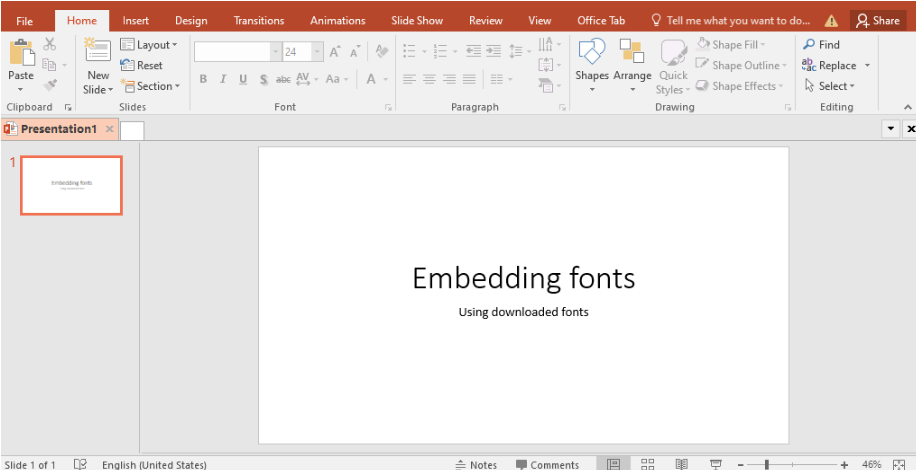
- Open Your Presentation:
Start with the PowerPoint presentation that you want to use your downloaded fonts in.
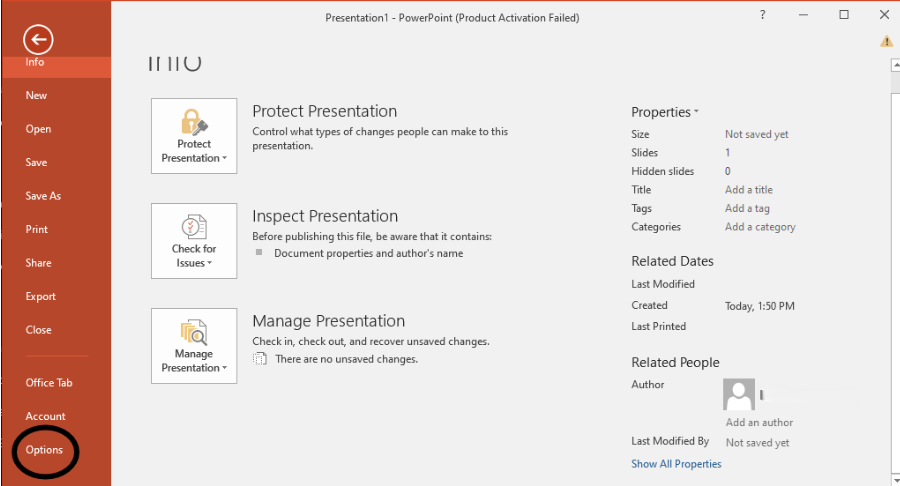
2. Go to Options:
Click on “File” > “Options” on Windows or “Preferences” on Mac.
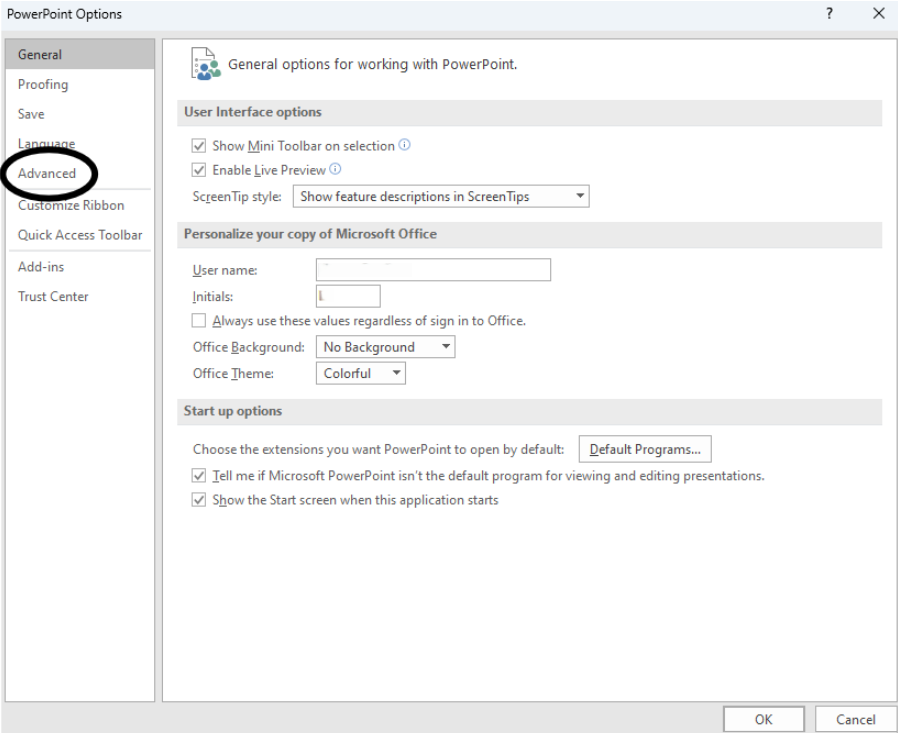
3. Advanced Settings:
Navigate to the “Save” or “Advanced” section.
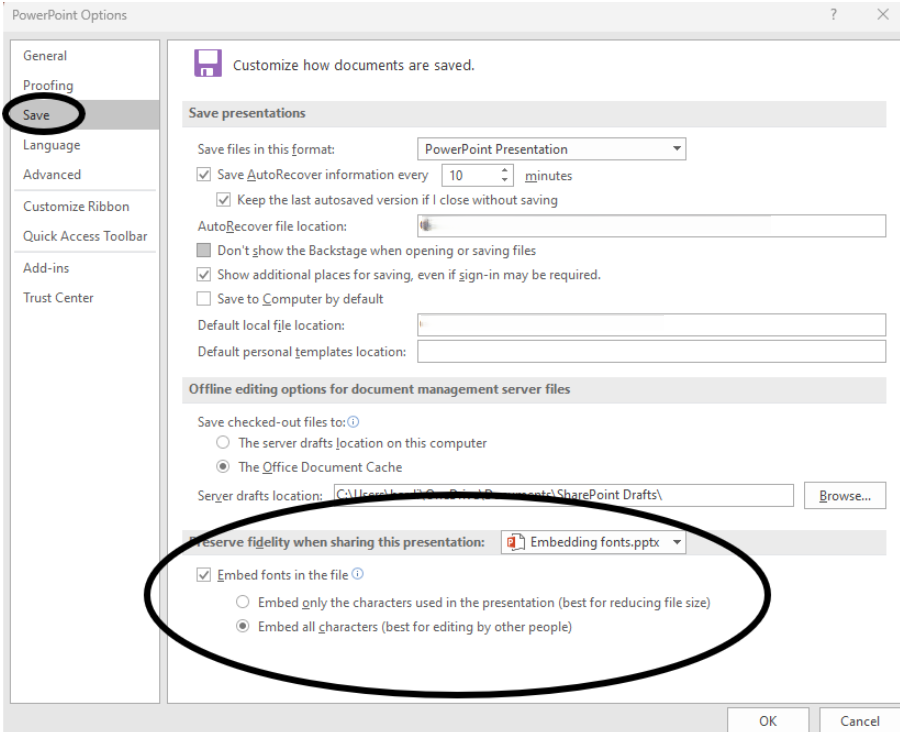
4. Embed Fonts:
Check the option “Embed fonts in the file.” You can choose to embed only the characters used in the presentation or all characters. Of course, choosing all characters is preferable – you never know what you’ll need to add or edit.
The upsides of using embedded PowerPoint fonts
Consistency:
The biggest advantage is ensuring your presentation looks exactly the way you designed it, regardless of the viewer’s device.
Professionalism:
Using unique fonts can elevate the overall look and feel of your presentation. It can also come across as more professional. This is because you may need a professional designer to help you use standard fonts in a way that makes your slide deck stand out from everyday users’ presentations.
The downsides of using embedded PowerPoint fonts
Increased File Size:
Embedding fonts can significantly increase the file size of your presentation. This will make it quite inconvenient to share via email or to upload to online platforms.
Compatibility Issues:
While embedding helps with font display, it doesn’t guarantee compatibility with all software versions.
Licensing Issues:
Some fonts have licensing restrictions that do not allow embedding.
Non-standard fonts in PowerPoint: Should you or shouldn’t you
The pros and cons of using downloaded fonts weigh up quite evenly. This can make it all the more alluring.
In the end, it’s up to you. You’ll simply have to decide whether you’re willing to search through thousands of fonts to find the one you like.
Before you go for it, you should also ensure that you are capable of embedding fonts.
Keep these 2 considerations in mind:
- If your presentation targets a specific audience with access to particular fonts (e.g., an internal company presentation using a branded font), using that font might be acceptable. However, for broader audiences, sticking with PC/Mac-friendly fonts may make your presentation more accessible.
- If the viewer’s device lacks the specific font you used, PowerPoint will automatically substitute it with a similar system font. This can drastically alter the appearance and even the meaning of your presentation.
PowerPoint Font must-dos
No matter what font you decide on, there are some best practices for PowerPoint fonts that you should always follow.
Limit Font Choices:
Stick to 2 (maybe 3 – if the third is used sparingly) different fonts per presentation to maintain a clean and professional look.
Ensure Readability:
Choose fonts that are easy to read, especially for body text. Avoid overly decorative fonts for large blocks of text.
Consistent Formatting:
Maintain consistent font sizes and styles throughout your presentation to enhance readability and cohesion.
Test Compatibility:
Before finalizing your presentation, test it on different devices to ensure the fonts display correctly.
Find your type
By understanding the capabilities and limitations of different font types, you can make informed decisions that enhance the visual appeal and readability of your slides. Remember, the right fonts can make a world of difference in how your message resonates with your audience. If you find yourself confused about what to choose, a presentation designer is a good place to go next!

I'm Marike
I provide professional presentation design services specializing in PowerPoint, Keynote and Google Slides.
Follow me on social:
Buy US a coffee
Enjoying the content?
Show your appreciation...

YOUR Message*
YOUR NAME*
YOUR Email Address*
What's the slide count?*
where are you based?*
I'm ready! let's start
By clicking the submit form button you agree to my Privacy Policy.
Mail me directly at:
info @ marikedesigns dot com
August slots are available. Book now.
how did you find me?*
What's your deadline?*